


How to Fix SOLIDWORKS Crashing with "Low Memory" Errors When Opening STEP Files
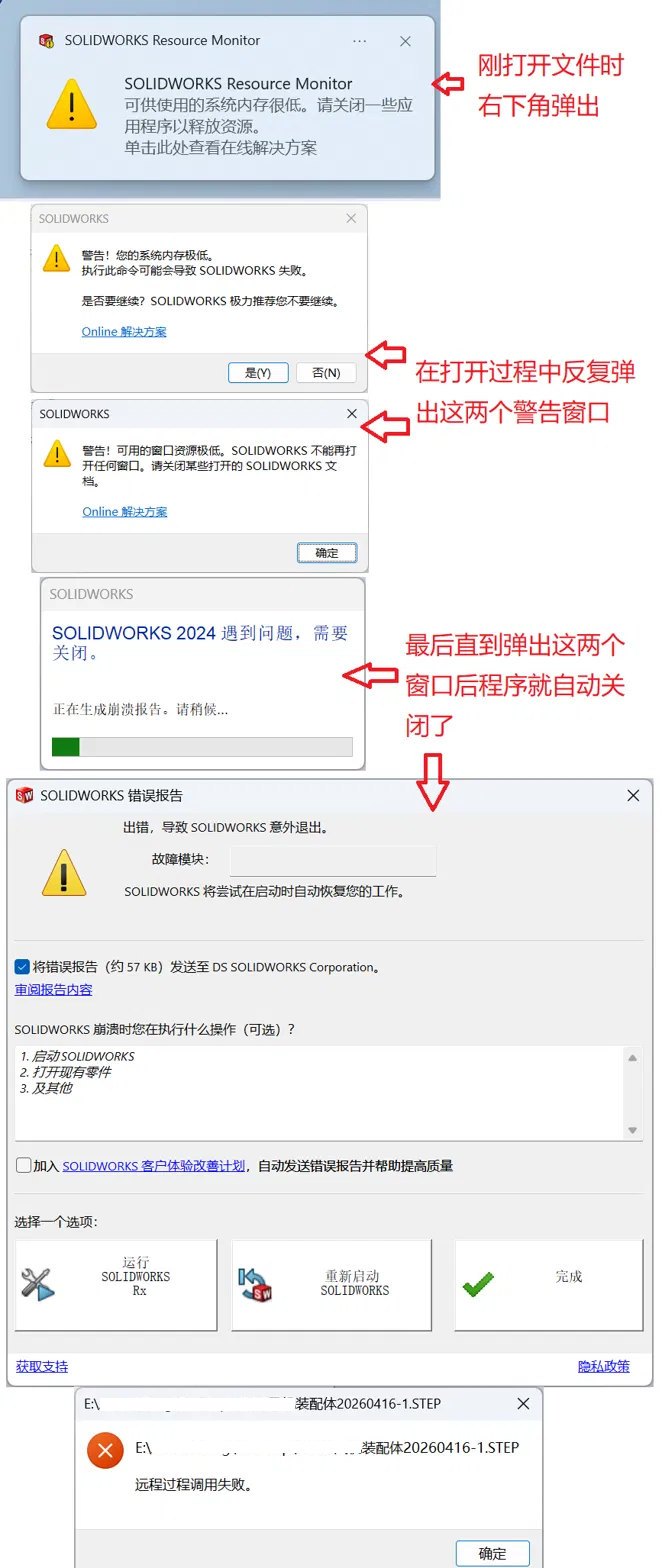
You try to open a STEP file in SOLIDWORKS — maybe only a few megabytes in size — and things go wrong fast: the Resource Monitor pops up warning that "available system memory is very low", repeated warnings appear during loading, and finally SOLIDWORKS crashes with an error report. Meanwhile, Task Manager shows you have plenty of free RAM.
If this sounds familiar, the good news is that your hardware is almost certainly fine, and your SOLIDWORKS installation is not broken. The "low memory" message is misleading. This guide explains the real cause and walks through the exact settings that fix it, based on a real troubleshooting case: an 8 MB STEP file of a brushless fan assembly (about 700 bodies) that repeatedly crashed SOLIDWORKS 2024 SP5 on a workstation laptop with 32 GB of RAM.
Symptoms
- SOLIDWORKS Resource Monitor warns about low system memory immediately after opening the file
- Repeated warnings: "Your system memory is extremely low" and "Available window resources are very low. SOLIDWORKS cannot open any more windows"
- SOLIDWORKS eventually crashes and generates a crash report
- Task Manager shows the SLDWORKS.exe process using far less memory than you actually have available
- The same file may open without trouble in an older SOLIDWORKS version (2016 or earlier)
The Real Cause: Windows GDI Handle Limit, Not RAM
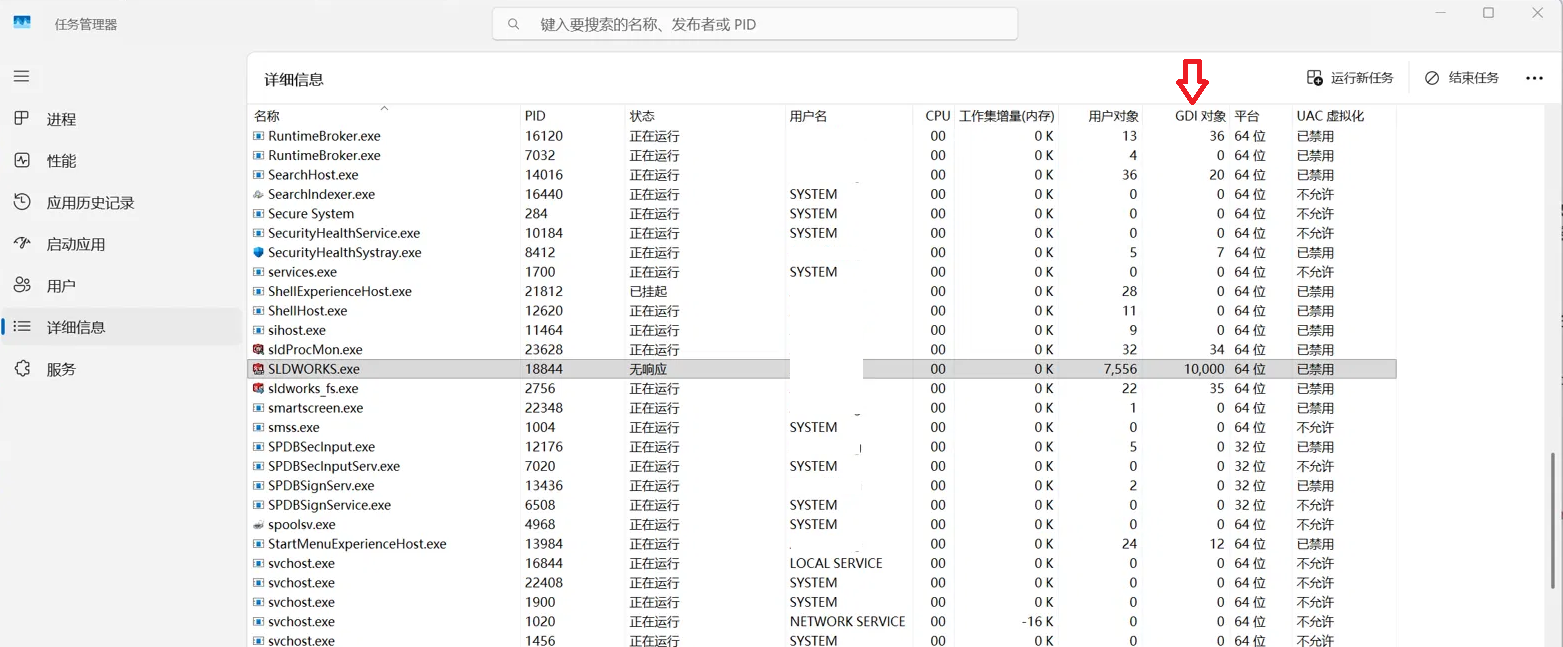
Windows limits every process to a maximum of 10,000 GDI objects (graphics handles used for windows, UI elements, and display resources). When SOLIDWORKS imports a STEP file as an assembly, every component consumes handles. A STEP file is plain text, so even an 8 MB file can expand into an assembly with hundreds or thousands of parts — and the handle count climbs until it hits the 10,000 ceiling. At that point SOLIDWORKS can no longer create any UI element and crashes.
SOLIDWORKS reports this as a memory problem, but it is a handle exhaustion problem. That is why adding RAM does not help, and why the process memory in Task Manager never comes close to your physical limit.
How to confirm it on your machine: open Task Manager → Details tab → right-click a column header → Select columns → enable GDI objects and User objects. Open the STEP file and watch SLDWORKS.exe. If GDI objects climb toward 10,000 and then the crash happens, you have confirmed the diagnosis.
Why older versions seem immune: SOLIDWORKS 2017 introduced 3D Interconnect, which changed how neutral formats like STEP are imported. SOLIDWORKS 2016 and earlier use the legacy translator, which behaves very differently — this is usually the real reason a colleague's old version "just works", not that the new version is faulty.
The Fix: Import the STEP File as a Multibody Part
The key is to stop SOLIDWORKS from expanding the STEP file into a full assembly with hundreds of component windows. Importing everything into a single multibody part document reduces handle consumption by roughly an order of magnitude.
Step 1 — Change the import options
Go to Tools → Options → System Options → Import.
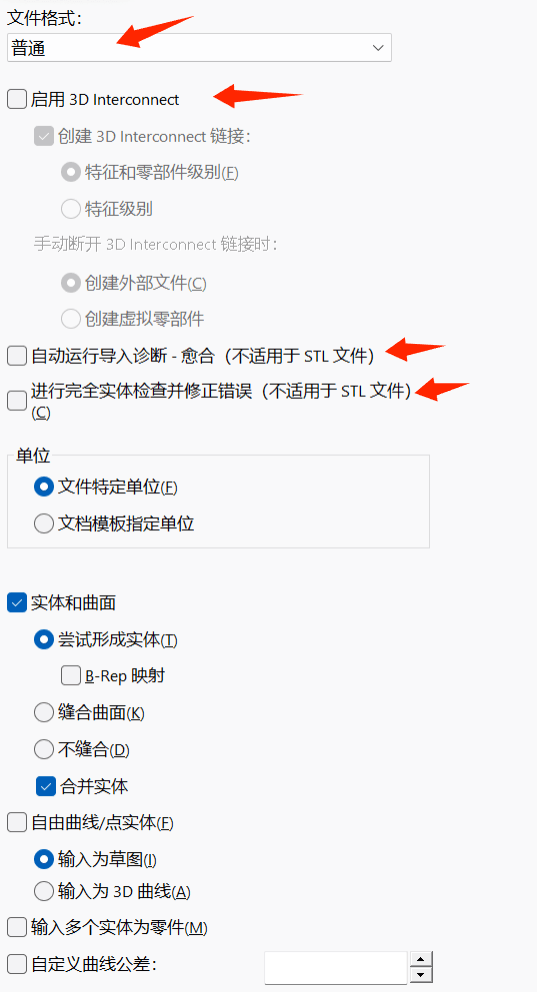
On the General page (File Format: General):
- Uncheck Enable 3D Interconnect — the most important setting
- Uncheck Automatically run Import Diagnostics (Healing)
- Uncheck Perform full entity check and repair errors
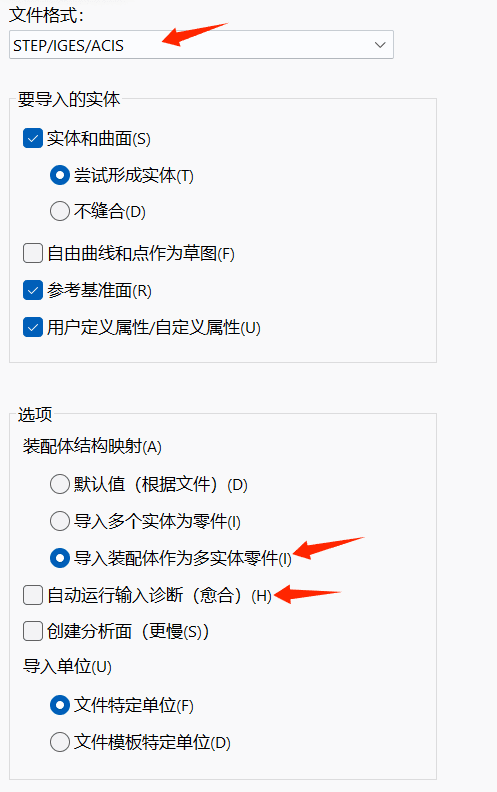
Now open the File Format dropdown at the top and switch to STEP/IGES/ACIS (this page only appears after 3D Interconnect is disabled):
- Under Assembly structure mapping, select Import assembly as a multibody part — the second critical setting
- Uncheck Automatically run Import Diagnostics (Healing) here as well — this page has its own copy of the option
Step 2 — Exit SOLIDWORKS properly, then restart
This step matters more than it sounds. SOLIDWORKS only saves its settings to the registry when it closes normally. If it crashed in your previous session, everything you changed in that session was lost. So: change the options → close SOLIDWORKS normally → restart it → verify the settings are still there → only then open the STEP file.
In our test case, this change alone dropped GDI object usage from 10,000+ (crash) to about 1,200 (stable), and the 700-body fan assembly imported successfully.
Step 3 — Decline feature recognition
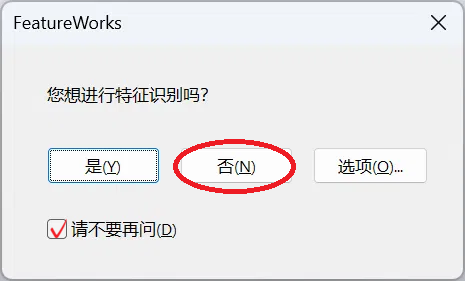
When the import finishes, FeatureWorks may ask "Do you want to proceed with feature recognition?" Choose No and check "Don't ask me again." Reverse-engineering a feature tree for hundreds of imported bodies is extremely slow and frequently crashes. If you only need to view the model and measure dimensions, you do not need it.
If the Model Opens but the Screen Is Blank
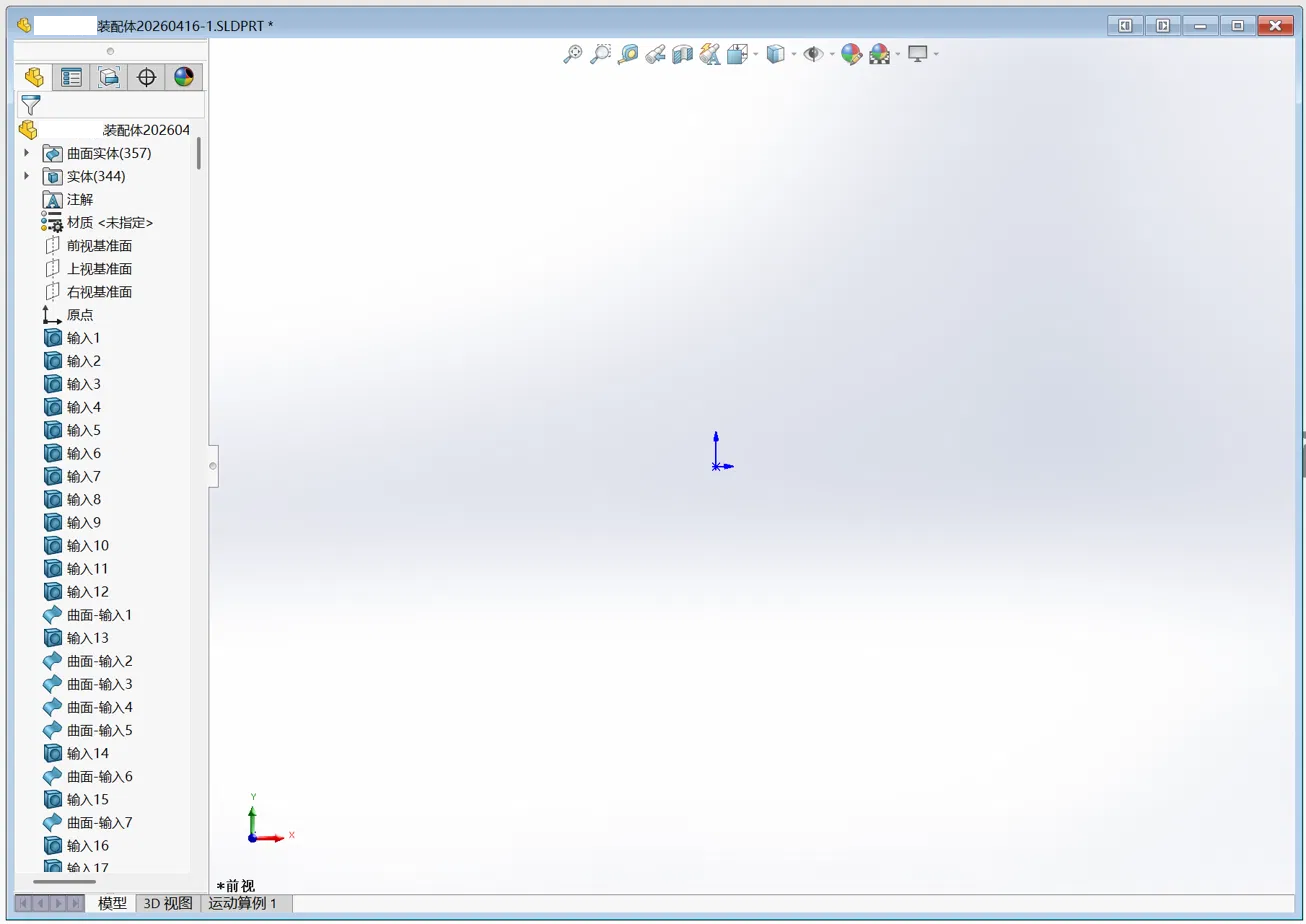
A common follow-up problem: the import succeeds, the FeatureManager tree lists all the bodies, but the graphics area shows nothing — even after pressing F (Zoom to Fit).
Before blaming your graphics card, check for stray geometry. STEP conversion often produces leftover surface bodies located extremely far from the origin. Zoom to Fit frames all visible geometry, so a single stray surface millions of millimeters away shrinks your real model to less than one pixel. The screen looks empty, but the model is there.
Quick tests:
- Select a body in the tree, right-click → Zoom to Selection. If the model appears, stray geometry is confirmed.
- Right-click the Surface Bodies folder in the tree → Hide, click once in empty graphics space to deselect, then press F. In our case this instantly revealed the complete model.
- Use Tools → Evaluate → Mass Properties on a body: if the center of mass is a normal coordinate, the geometry itself is healthy.
Permanent cleanup: if you do not need the surface bodies (they are usually conversion debris), right-click the Surface Bodies folder → Delete Bodies instead of just hiding them. Then save the file as SLDPRT. From then on, open the SLDPRT — it loads in seconds, skips the import dialog entirely, and never touches these problems again.
Graphics Settings Worth Checking on Laptops
On hybrid-graphics laptops (Intel integrated + NVIDIA discrete GPU), a few more settings prevent blank screens and severe lag with large imported models:
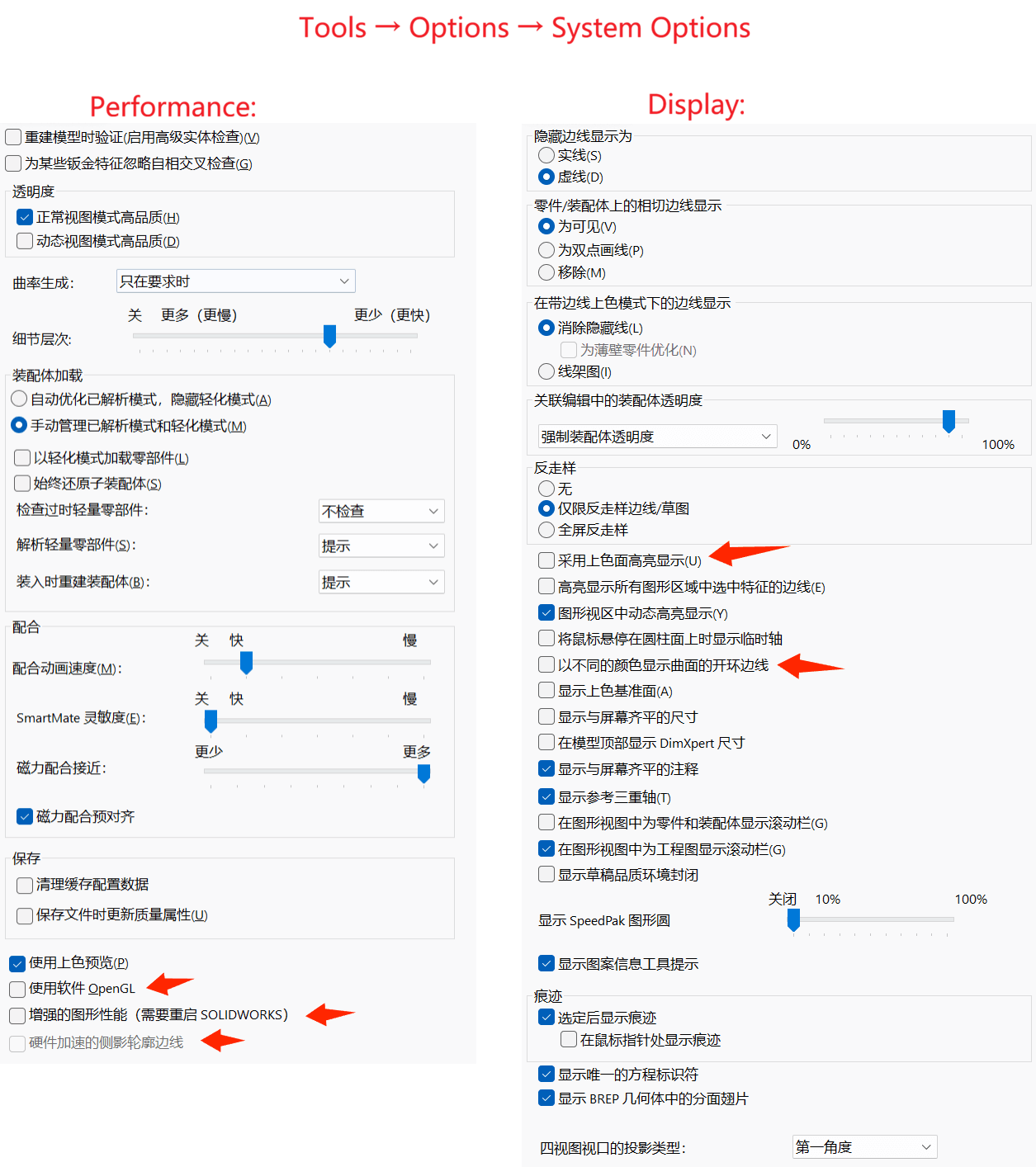
In SOLIDWORKS (Tools → Options → System Options):
- Performance: uncheck Enhanced graphics performance (a known cause of blank viewports in SOLIDWORKS 2024 on hybrid-GPU laptops; requires restarting SOLIDWORKS) and Hardware accelerated silhouette edges. Leave Use software OpenGL unchecked — it is a diagnostic tool, not a daily-use mode.
- Display: uncheck Use shaded face highlighting and Show open edges of surfaces in different color. With hundreds of bodies, drawing selection highlights can freeze SOLIDWORKS for many minutes.
Per document (Tools → Options → Document Properties → Image Quality): drag both resolution sliders down to roughly one-third.
In Windows:
- Settings → System → Display → Graphics → add
SLDWORKS.exe→ set to High performance (discrete GPU), and turn off Optimizations for windowed games for it - In the NVIDIA Control Panel → Manage 3D settings → Program Settings, assign SLDWORKS.exe to the NVIDIA GPU as well
Last Resort: Raise the Windows Handle Quota
For genuinely enormous assemblies that still exhaust handles even as a multibody part, you can raise the per-process limits in the registry. UnderHKEY_LOCAL_MACHINE\SOFTWARE\Microsoft\Windows NT\CurrentVersion\Windows:
GDIProcessHandleQuota: 10000 → 65536 (decimal)USERProcessHandleQuota: 10000 → 18000 (decimal)
Export the key as a backup first, then restart the PC. This is a well-known adjustment among large-assembly SOLIDWORKS users, but treat it as a fallback — the import settings above solve the vast majority of cases without touching the registry.
Quick Reference Checklist
| Problem | Fix |
|---|---|
| Crash with "low memory" while opening STEP | Disable 3D Interconnect; import assembly as multibody part |
| Settings keep reverting | Close SOLIDWORKS normally after changing them; verify after restart |
| FeatureWorks prompt on open | Choose No, check "Don't ask again" |
| Model tree loads but screen is blank | Hide/delete surface bodies, deselect, press F |
| Blank viewport on hybrid-GPU laptop | Disable Enhanced graphics performance; force discrete GPU |
| Slow rotation/zoom with many bodies | Lower Image Quality sliders; disable shaded face highlighting |
| Still hitting the handle ceiling | Raise GDI/USER handle quotas in the registry |
| Everything works | Save as SLDPRT and use that file from now on |
FAQ
Does this mean my computer needs more RAM?
No. The crash occurs regardless of how much RAM is free, because the limit being hit is the per-process Windows handle quota, not physical memory.
Is my graphics card VRAM too small?
Unlikely. In the case documented here, a 4 GB NVIDIA T600 handled the 700-body model without issue once the import settings were corrected. VRAM affects display smoothness, not import stability.
Should I install an older SOLIDWORKS version instead?
No need. The old version only behaves differently because it predates 3D Interconnect. Disabling 3D Interconnect and importing as a multibody part gives you the same robust behavior in a current version.
Will importing as a multibody part lose the assembly structure?
You lose the component hierarchy and mates, but keep all geometry. For viewing, measuring, and referencing supplier models — the typical use for downloaded STEP files — this trade-off is almost always worth it. If you need the full assembly structure, apply the same import settings but expect heavier resource usage, and consider the registry adjustment.
This guide is based on a real case resolved on SOLIDWORKS 2024 SP5.0 / Windows 11, opening a STEP model of one of our brushless fan assemblies. If you have downloaded a 3D model of a EURARI brushless DC motor, high-speed blower, or gear motor and run into problems opening it, feel free to contact our engineering team — we are happy to help, or to provide the model in an alternative format.
